How to make a Mac screen darker than the minimum brightness
The brightness keys stop at the lowest backlight step the hardware allows, which on a MacBook Pro is still bright at night. macOS goes a little lower with Reduce white point. Atapa dims below that step in the display pipeline, to a floor of 5% by default. Checked on macOS 27.2 on 29 October 2026.

Kevin Hofmann, maker of Atapa. Updated .
At night the lowest step of the brightness keys is still bright. This guide covers what macOS can do on its own, what Atapa adds, and the limits that no software gets around.
Why the brightness keys stop
The keys control the backlight, and the panel has a lowest backlight level set by its firmware. Below that, pressing the key does nothing. To go darker you have to reduce the picture itself as well, which is a different stage of the display pipeline.
On M5 Pro and M5 Max MacBook Pros there is one more wrinkle: apps that dim through a gamma table report success and change nothing (an Apple bug, still open on macOS 27.2 as of 26 October 2026; the details are on the M5 page). Sundown’s blog describes its flicker-free mode as dimming through the gamma table. Atapa does not use that path, so its dimming works there.
Option 1: Reduce white point, built into macOS
- Open System Settings, Accessibility, Display.
- Turn on Reduce white point and move its slider.
The screen gets dimmer than the keys allow. It is a fixed amount, it has no schedule, and it does not change color. It is free and already installed, so try it first. If it is enough, you are done.
Option 2: Atapa’s dim slider
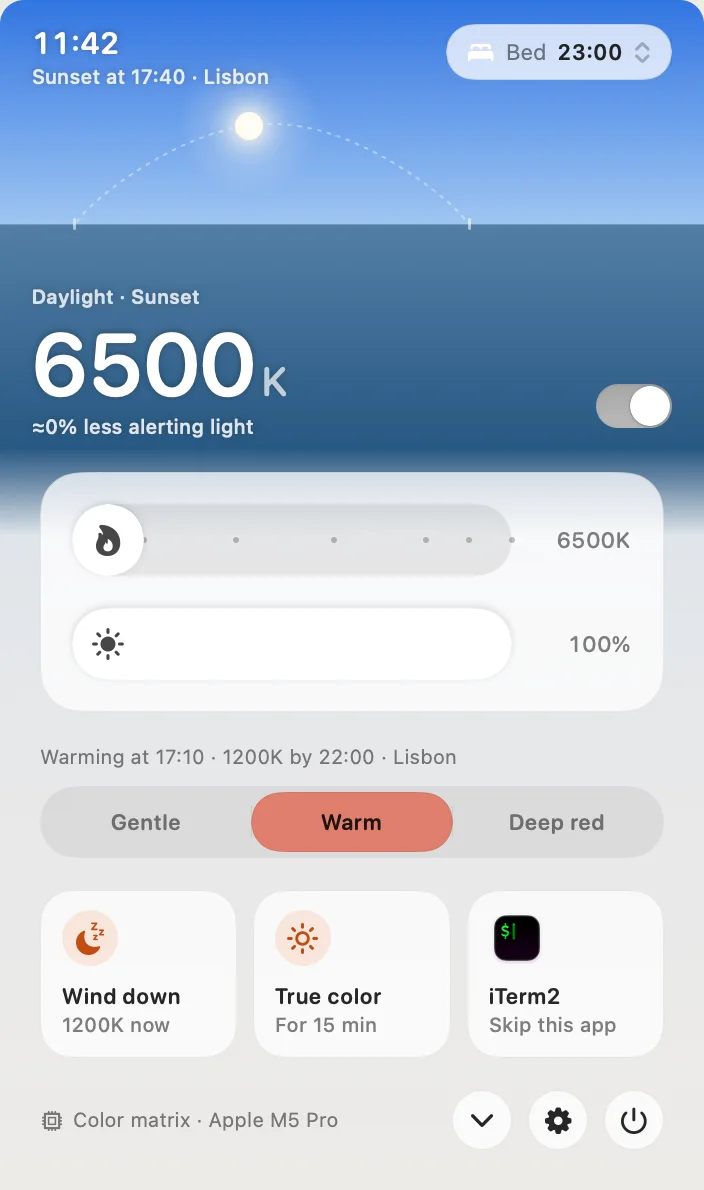
- Install Atapa and open the popover from the menu bar.
- Drag the lower slider, the one with the sun icon, to the left. The number next to it is the brightness; the screen goes darker than the keys allow as you pass the hardware minimum.
- To go back, drag it right, or click Back to Sunset to drop the hold and follow the evening again.
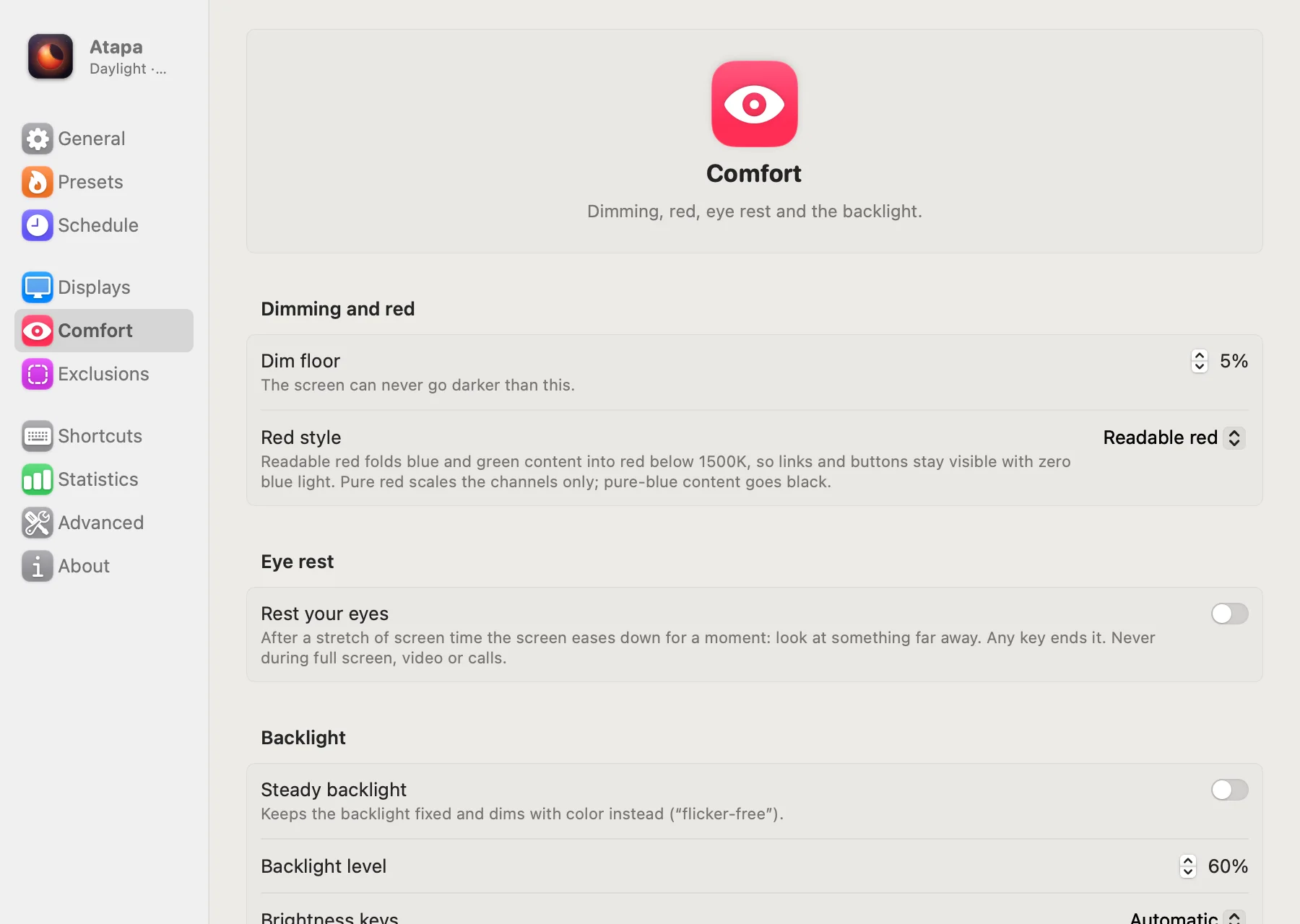
The screen never goes darker than the dim floor, 5% by default. You can set it from 1% to 30% in Settings, Comfort, Dimming and red, Dim floor. Hold ⌥⌘T to see true color and full brightness while the keys are down. ⌃⌥⌘⌫ resets everything.
Atapa is our app: $12 once for all of your own Macs, with a 14-day trial that asks for no card. Dimming keeps working after the trial; deep red needs a key.
Option 3: let the brightness keys drive Atapa’s dimming
- Open Atapa’s Settings, Comfort, Backlight.
- Set Brightness keys to Atapa dim. The default, Automatic, hands the keys to Atapa only while Steady backlight is on; System backlight leaves them to macOS.
- Grant the Accessibility permission when asked. Atapa needs it only to intercept the keys; the tint itself asks for nothing. The Open Settings button takes you to System Settings, Privacy & Security, Accessibility.
With Atapa dim, each press of the brightness keys moves Atapa’s dimming by 5% instead of the backlight, so the keys reach below the hardware minimum. A small brightness pop-up shows the level; turn it off with Show the brightness HUD if you prefer.
Option 4: let the evening do it
You do not have to touch a slider every night. Atapa’s bedtime question sets a curve that dims as it warms: warming starts 30 minutes before sunset, the deepest stop comes an hour before your bedtime, and daylight is back by wake-up. The built-in presets pair warmth with brightness: Candle is 1900K at 90%, Ember 1200K at 80%, Midnight 500K at 70%. Wind down in the popover jumps to tonight’s deepest stop.
Option 5: a Shortcut, a URL or the command line
The Set Brightness action takes Percent (1 to 100). From a script, open "atapa://set?dim=20" holds 20%, and /Applications/Atapa.app/Contents/MacOS/Atapa --set-dim 20 does the same. A Sleep Focus can also set the screen through Atapa’s Focus filter. The full list is on the Shortcuts reference. Follow My Evening, or the popover’s Back to Sunset, drops the hold.
What no software can do
The MacBook Pro backlight uses PWM at every brightness level. Dimming reduces flicker at low brightness; it does not eliminate it, and no app, Atapa included, makes the panel flicker-free. Atapa’s Steady backlight option (Settings, Comfort, Backlight) keeps the backlight at a level you choose and dims with color instead, which avoids the lowest backlight steps if those bother you. It is a preference, not a flicker claim. If you use it, turn off Automatically adjust brightness in System Settings, Displays, so macOS stops moving the backlight.
External monitors: Atapa’s pixel dimming works on any display it tints. Hardware dimming over DDC is in the app and fails soft when a monitor does not answer, but it is not yet verified on a real monitor as of 2026-10-29. Until this page says otherwise, treat that path as unproven.
Intel Macs are not supported in Atapa 1.0. Reduce white point works there.
Questions
Why does my MacBook not go darker than the lowest brightness step?
The brightness keys and the slider in System Settings control the backlight, and the panel's firmware sets a lowest backlight level. Below that the keys do nothing. Going darker means reducing the picture as well as the backlight: that is what Reduce white point does in macOS, and what Atapa's dim stage does with finer control and a schedule.
Can macOS do it without any app?
Partly. System Settings, Accessibility, Display, Reduce white point lowers the intensity of bright colors with a slider. It is a fixed amount, it has no schedule, and it does not change color. It is free and already installed, so try it first. If you want it to follow the evening, go lower, or warm the screen at the same time, that is what Atapa adds.
How low does Atapa go?
To the dim floor, 5% by default, adjustable from 1% to 30% in Settings, Comfort, Dim floor. The floor is the darkest the screen can ever get, so you cannot dim yourself into a black screen by accident. Hold ⌥⌘T to see true color and full brightness at any time, and ⌃⌥⌘⌫ resets everything.
Does dimming in software stop the backlight flicker?
No. The MacBook Pro backlight uses PWM at every brightness level, so flicker is reduced at low brightness, not eliminated, and no software removes it. Atapa's Steady backlight option keeps the backlight at a fixed level and dims with color instead, which avoids the lowest backlight steps; it does not make the panel flicker-free, and we do not claim that.
Does it work on an external monitor?
The pixel dimming works on any display Atapa tints. Hardware dimming of an external monitor over DDC is in the app and fails soft if the monitor does not answer, but it is not yet verified on a real monitor as of 2026-10-29. Treat the external-monitor hardware path as unproven until this page says otherwise.